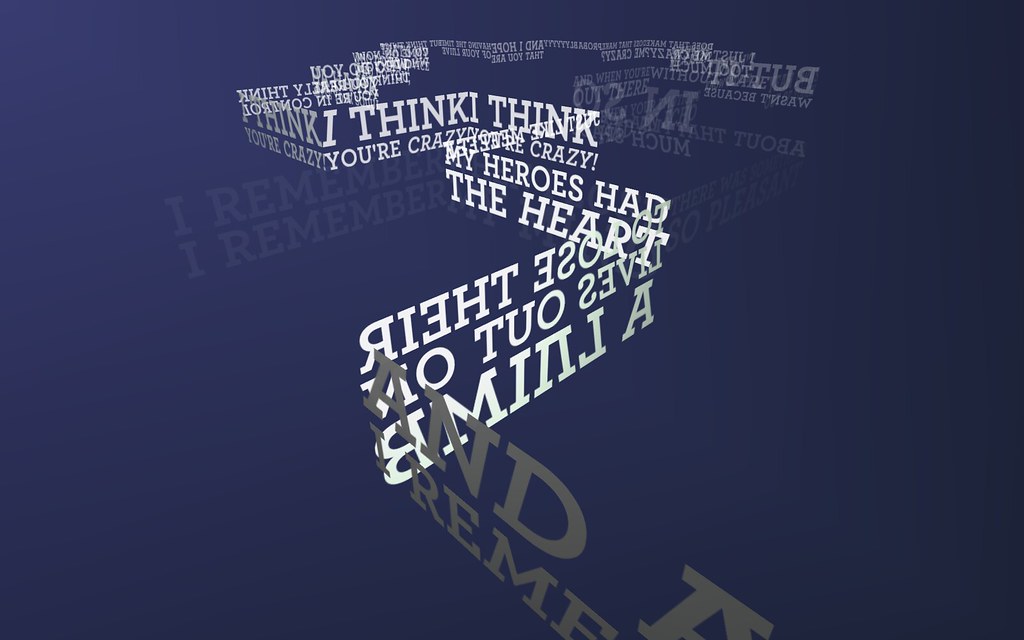
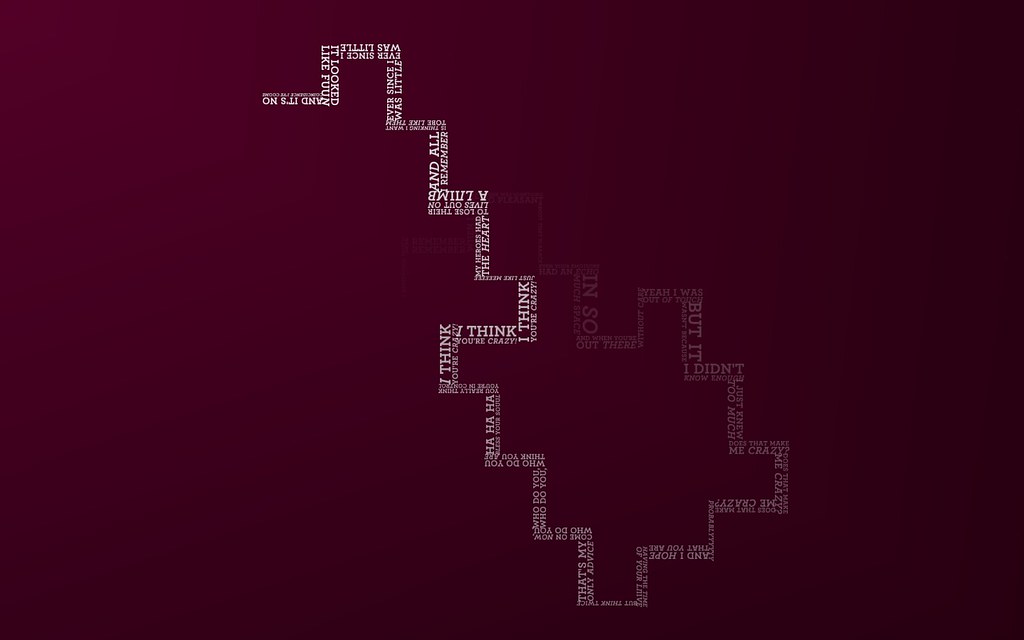
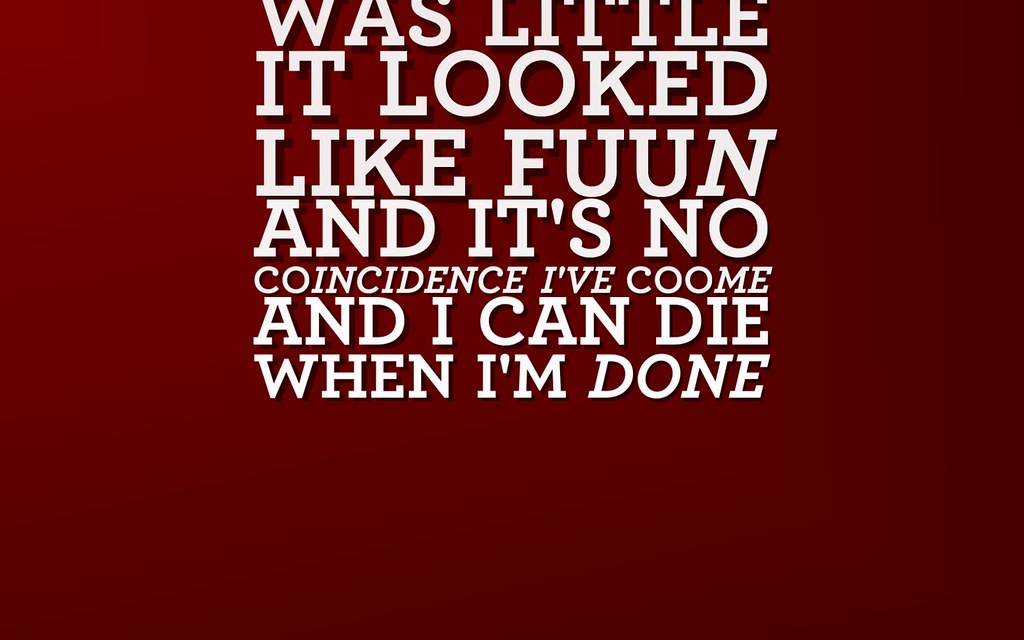
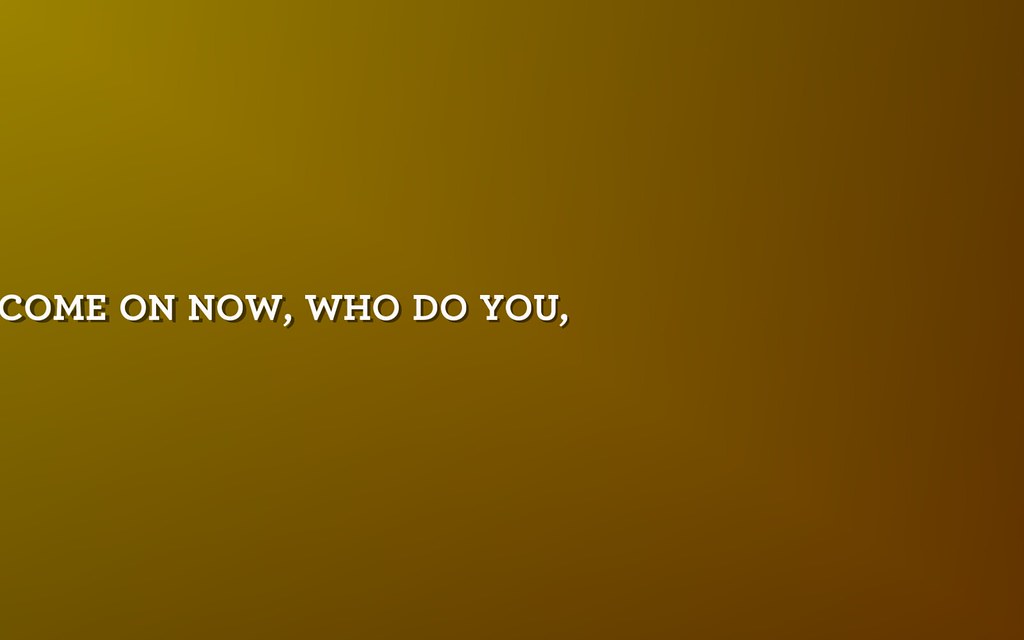
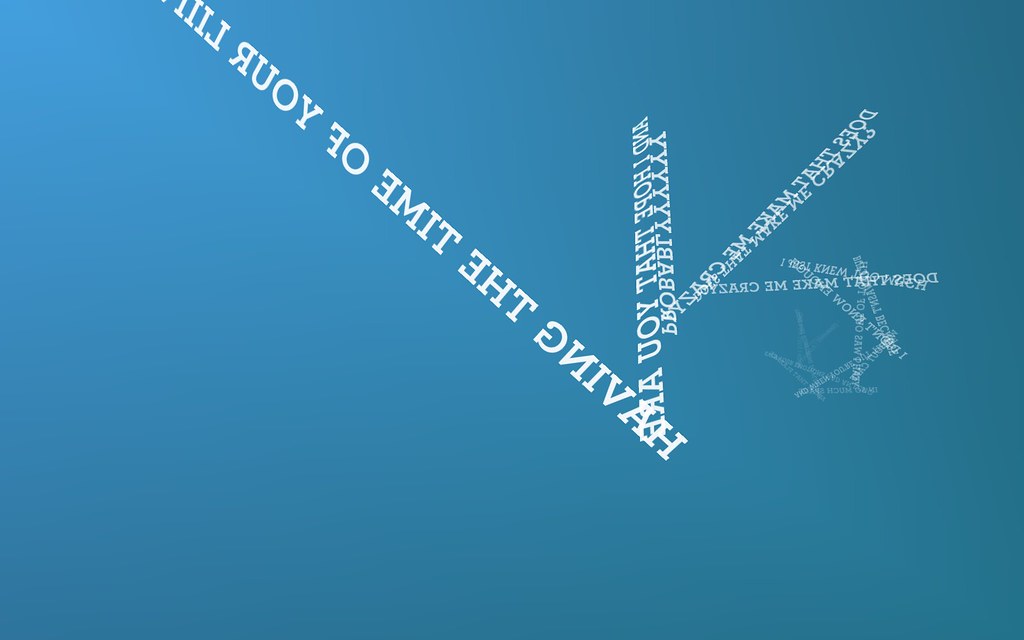
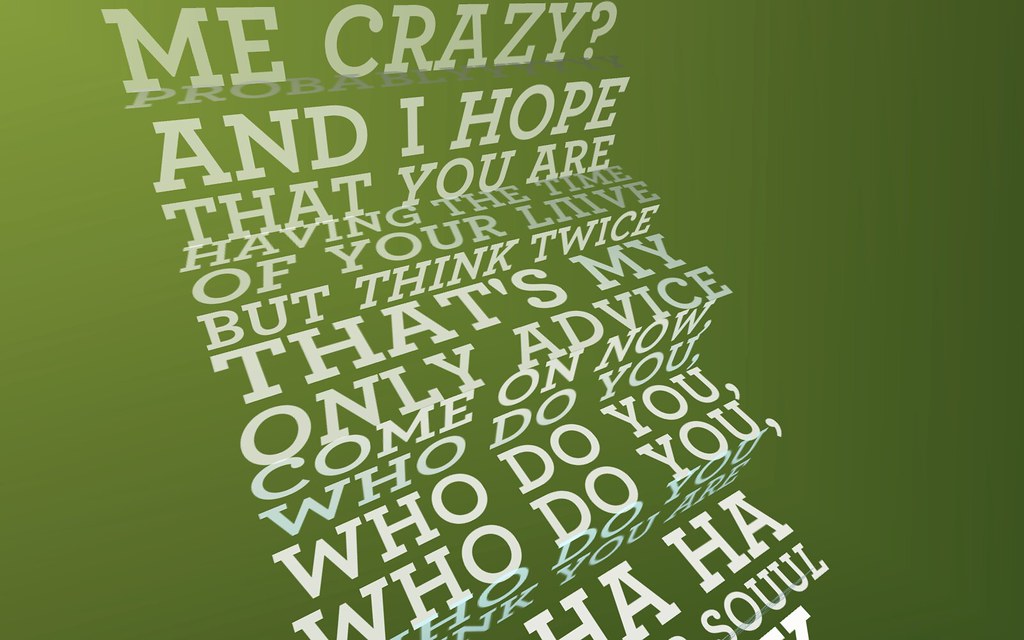
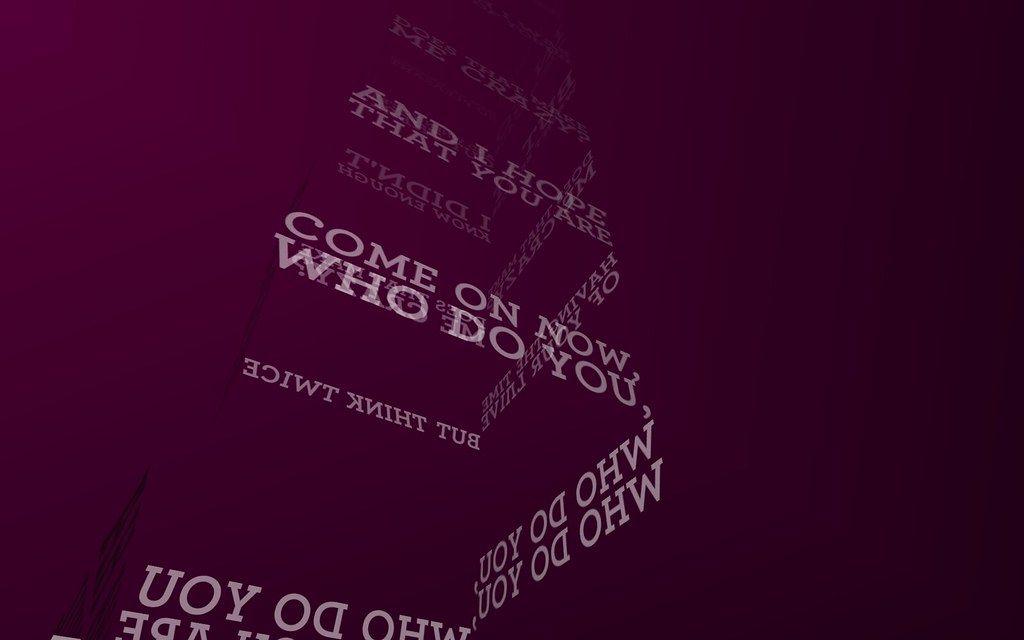
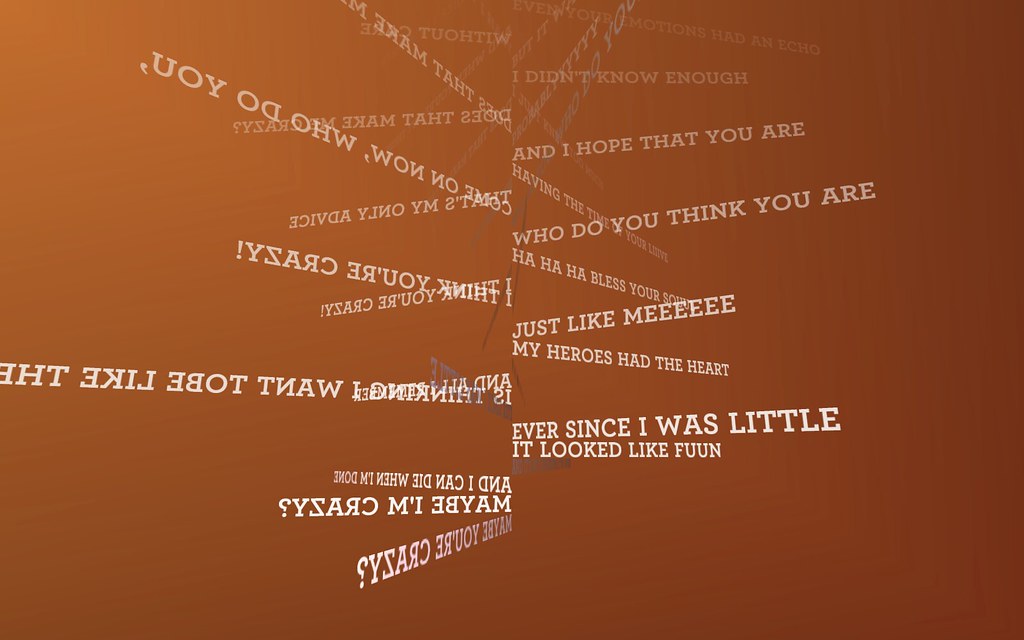
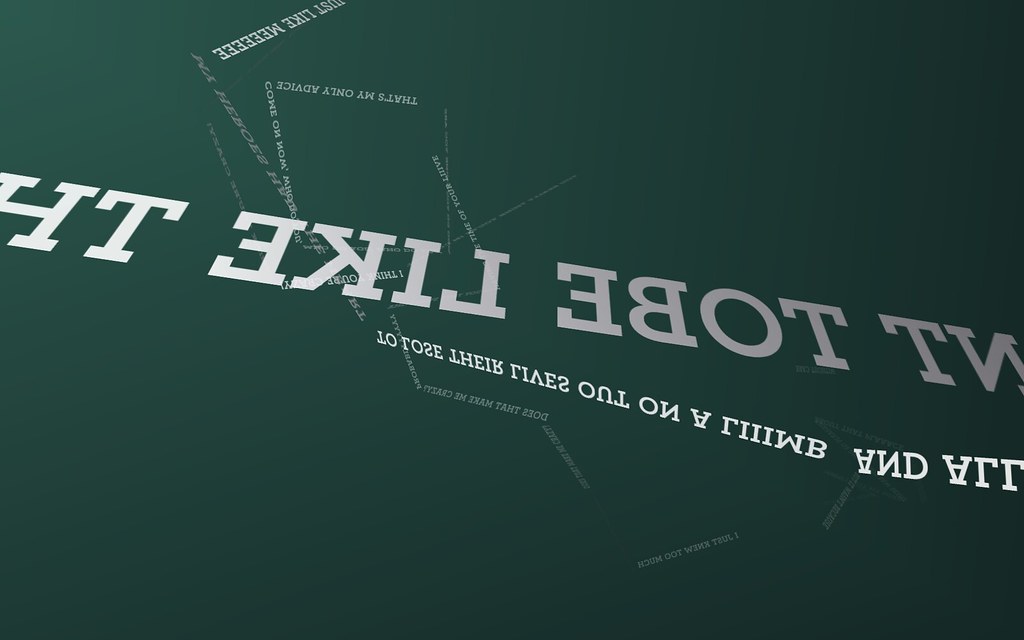
This is a screencast of a Processing sketch I developed called TypeStar. It’s basically a karaoke machine that renders lyrics in realtime according to a number of preset visualization schemes.
It was originally created for a project in my Type in Motion class which required students to create a kinetic type animation for the Busy Bee scene from the movie Best in Show. I decided that rather than create yet another kinetic type piece, I would write a kinetic type engine.
Status
Currently the sketch can be controlled via keyboard and mouse along with rough support for SMS control on laptops, iPhone control via OSCemote and oscP5, joystick control via proCONTROLL and midi controller support via proMIDI.
Downloads
Processing application exports are available below. I have absolutely no idea if they’ll work for you and can offer zero support, but the source is included along with a few example songs.
Running from source will require Processing and the following libraries: controlP5, ocd, oscP5, sms.
Adding Songs
Songs can easily be added by tracking down an UltraStar text file for a given song along with an mp3 and, optionally, album art in jpeg format. These files should be placed in the “songs” folder inside “content”. Then just add an entry to the “songs.xml” file within the “content” folder.
Information on creating your own song files can be found at the UltraStar Deluxe Wiki. There is also an application called LyricsCatcher which is designed to make the creation of these files much easier.


the windows version is unaviable .. please help
Mike and others having trouble with the stand-alone versions: I would try just running TypeStar straight from Processing. You’ll find TypeStar.pde in the “source” folder of whichever download you choose —just open that and you should be good to go.
Great ideia, but….
it is not opening on my Windows XP.
Not working on Vista too
still unable to install, please check the files. tks
npt working on windows vista
not work plz help
notify in my email
Not working on Windows 7
Hey all. Sorry to hear about the problems you’re having with Windows, but I have no way of testing that. I posted a more complete source package along with links to all necessary libraries, so you may have better luck building a Windows version yourselves.
Good luck!
Beautiful application.
Loooove the animations !
fyi: ran the application from source on Windows 7 without any problem.
Works perfectly on OSX
Can we play more songs from the iTunes library or does it only works with Hey Ya & Crazy ?
I love this typography in motion. Very simple and clean also. Great work!
Geart Idea ! you should suggest that idea to major companies to enhance music experience ! or even on Apple iTunes. I guess that the data provided to the engine is pretty small (just the text and timecode for each word). I would love to find this on all records !
This is amazing. Thank you so much for releasing this to the public.
Manu, TypeStar can theoretically play any song as long as you find or create a lyric file for it. The format comes from a game called UltraStar, which you can read about here: http://en.wikipedia.org/wiki/UltraStar
Once you have the lyric file and an mp3 (and possibly a some album art, which is used to influence the color), you make new entries in the songs.xml file, which should be pretty straightforward.
John, you’re very welcome. Thanks for the kind words.
HBE, some mp3 players already have support for a lyrics file with times. Unfortunately, the timing is typically line-based instead of word or syllable-based. Maybe someday!
Beautiful!
Worked beautifully on my mac
Hey man,
its not working here either. (win xp)
maybe if you do a “How to”…
i think i’m just opening the wrong files in the wrong place. With a tutorial would be much easier. Would help us a lot.
;D
Thx.
Will there be an update at some point telling us how to get this working on Vista?
For those Windows users, just use Processing and the source code
In case you don’t know how…..
1) download the windows version and unzip it somewhere(I would say the source file, but the link doesn’t seem to work for me). The important directories to make note of in the zip file are: source,lib, and content
2) Create a new directory where you’d like to keep the TypeStar player (I just created a TypeStar folder on my desktop)
3) Within that directory, create a subdirectory called code
4) Now go into the directory where you unzipped the files, navigate to typestar-1.0-windows\lib. Copy all of the files in this directory into the code directory you made in step 3.
5) Again, where you unzipped the files, navigate to typestar-1.0-windows\source directory and copy the TypeStar.pde file to the directory you made in step 2
6) Again, go back to the unzipped folder, copy the typestar-1.0-windows\content directory into the directory you made in step 2 (this is where all your songs/text files will be located).
7) Download Processing and install (a link is in the downloads section)
8 ) Open Processing, then click on File -> Open, then go to the directory you made in step 2 and select the TypeStar.pde
9) Push the Run button and enjoy!
Oh, and before I forget — thanks for the awesome app!
Thanks for the detailed write-up, Chris.